Register Meta ad creatives from a sheet. The waiting and copying back and forth in Ads Manager comes down to one row in a sheet, and bulk setup takes far less time.
Starter and Standard support Meta ad creative registration — see the supported range below. To create campaigns and ad sets from the sheet as well, or to run other channels such as Google, Kakao and Naver, see Enterprise.
Copying and pasting, editing multiple rows at once, working on the same sheet with teammates — it's the sheet you already know. The difference is that each cell has built-in features for ad registration. Search for and select the ad set, pick the creative by file name from your library, and enter the headline and text directly.
| Ad set ID | File name | Headline | Text |
|---|---|---|---|
| 120249485739890673beauty_fall_A | fall_01.mp4 | Fall arrivals up to 30% off | Meet this season's best-selling new arrivals |
| 120249485740430673beauty_fall_B | fall_02.jpg | Fall arrivals up to 30% off | Meet this season's best-selling new arrivals |
| 120250044076930673fall_new_C | fall_03.jpg | Free shipping today only | Order today for free shipping and delivery tomorrow |
Carousels with several cards, and vertical creatives that need separate versions for feeds and for Reels and Stories, are the most hands-on work in Ads Manager. In WIVer, put one file name per line in the file name cell and you have a carousel, with a different headline for each card if you like. Put the same number of file names in the vertical creative cell, and Reels and Stories show the vertical versions. Even the most tedious combination — carousel plus vertical — takes one row.
| Type | File name | Vertical file name (Stories/Reels) | Headline |
|---|---|---|---|
| Single + vertical | fall_01.mp4 | fall_01_9x16.mp4 | Fall arrivals up to 30% off |
| Carousel | card_01.jpgcard_02.jpgcard_03.jpg | Toner 30% offSerum buy 1 get 1Cream free shipping | |
| Carousel + vertical | card_01.jpgcard_02.jpgcard_03.jpg | card_01_9x16.jpgcard_02_9x16.jpgcard_03_9x16.jpg | Toner 30% offSerum buy 1 get 1Cream free shipping |
The more tedious a format is in Ads Manager — carousels, vertical creatives, or both together — the bigger the difference a sheet makes. In WIVer, every one of them is a single row. Ads made from posts you've already published, and partnership ads made from a creator's partnership ad code, are registered from the same sheet, and putting the same creative into several ad sets is one row too.
Starter and Standard support most of the creative types you use day to day. During the 14-day free trial, you can check whether the ad types you use can be registered from the sheet. Enterprise supports a much wider range, including collection creatives, lead ads and click-to-call ads.
When you create an ad, Meta turns on Advantage+ creative enhancements such as brightness and contrast adjustment, automatic cropping and text variations by default, so a designer's creative can end up shown differently than intended. In Ads Manager you have to switch them off ad by ad; WIVer creates every ad with the enhancements off. The creatives and copy you put in the sheet are shown as they are.
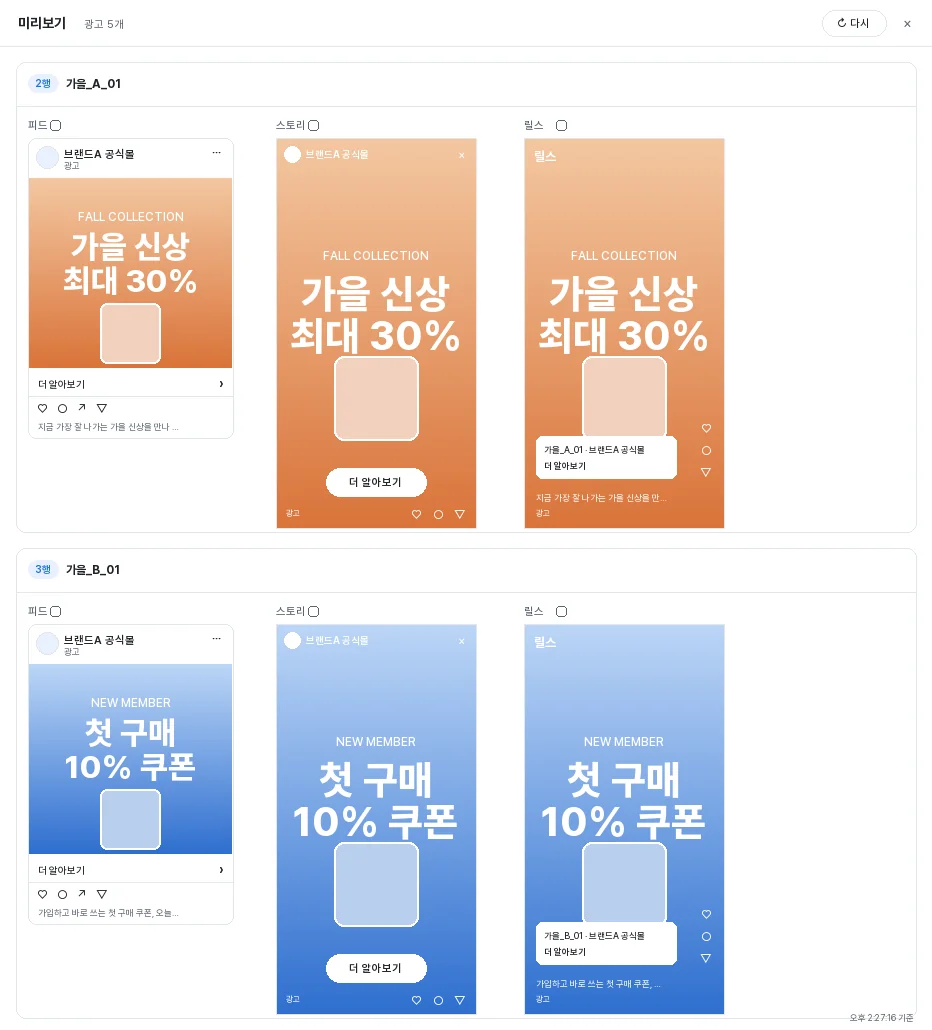
After registering dozens of ads, the biggest worry is whether any creatives got mixed up. Open the preview and every ad you registered is laid out on one screen, just as it will appear, so you can check them at a glance without opening links one by one. Each row shows the Feed, Stories and Reels previews side by side. The preview link and the Ads Manager link are written to each row, ready to pass on when you report.
No need to upload creative files one at a time. Select a zip file or a folder and every image and video inside is added to your asset library and linked automatically to the file name cells in the sheet.
When the same image and copy go into several ad sets, WIVer doesn't create new ads — it duplicates one post. Likes, comments and shares that used to pile up separately in each ad set come together in one place, and duplicating ads one by one in Ads Manager is a thing of the past. In the sheet, just enter several IDs in the ad set ID cell.
| Ad set ID | File name | Ad ID |
|---|---|---|
| 120249485739890673120249485740430673120250044076930673 | fall_01.mp4 | 120250044076931001120250044076931002120250044076931003One shared post · likes and comments combined |
WIV Labs Inc. has been registering Meta ads through the API for more than ten years and is certified as a Meta Business Partner in ad tech. WIVer packs that experience into one product, and WIVer proactively handles Meta API updates.
As an official Meta partner, we strictly follow all of Meta's rules for protecting customer information and security. WIVer runs as an app that has passed Meta's app review and data protection assessment; you approve each ad account connection yourself and can remove it at any time. Granted permissions are used only as needed for ad registration and creative analysis reports, and your ad data and creatives are never used for any other purpose or shared with third parties.

These steps start once the ad registration sheet is open. The screens are simplified versions of the app. Follow what goes in and what comes out.
Use Upload assets above the sheet to add images and videos. The file names become the values you pick in the sheet's file name column. For bulk work, upload a zip or select a whole folder at once.
Paste the ad set ID into the cell, or open Find ad sets, expand a campaign and check the ad set. Either way, WIVer fills in the page ID for you. To use one ad set on many rows, copy the ID and paste it down.
| Ad set ID | Page ID | File name | Headline |
|---|---|---|---|
| 120249485739890673beauty_fall_A | 10215837filled automatically |
Pick the file name from your uploads, then type the headline, text, URL and CTA. If you already have a table in Excel, copy the block and paste it straight into the sheet. Select any cell and the guide line under the sheet explains it. One row is one ad.
| Ad set ID | File name | Headline | Text | URL | CTA |
|---|---|---|---|---|---|
| 120249485739890673beauty_fall_A | fall_01.mp4 | Fall arrivals up to 30% off | Meet this season's best-selling new arrivals | brand.com/fall | Shop now |
Check the Register cell on each row you want and press Register ads. To check many rows at once, copy one checked cell and paste it onto the rows below. Once registration finishes, setup status changes to Setup complete, the delivery column shows Meta's status, and the preview column gets a link to the real ad. If something fails, the message column says why. Fix it and register again.
| Register | Ad name | Setup | Delivery | Preview | Message |
|---|---|---|---|---|---|
| ✓ | fall_A_01 | Setup complete | ACTIVE | fb.me/2kk1OlkcNBhk ⧉ | |
| ✓ | fall_B_01 | Setup complete | ACTIVE | fb.me/3rQ8vZtLp0cW ⧉ | |
| ✓ | fall_C_01 | Setting up | Processing fall_03.jpg |
Connect your ad account and you can start right away. You can start the 14-day Starter free trial without a card.
Start for free